· Українською · Auf Deutsch · По-русски
How to move your sets from Quizlet
Quizlet doesn't hand sets over by link, but it does let a set's creator copy it as text. That's enough: the text goes into Bebralka's import and the cards appear straight away. It takes about a minute per set.
Before you start
- Only a set's creator can export it from Quizlet. Someone else's set can't be exported, not even after you copy it to your account (Quizlet's help says so).
- It's easiest on a computer, on quizlet.com.
- Each Quizlet set moves over on its own; you can gather them into a folder in Bebralka afterwards.
Step by step
Open the set on Quizlet
Log in on quizlet.com and open the set from your library.
Choose … → Export
The … button is at the top of the set's page. Leave the separators as they are: a tab between term and definition, and each card on a new line.
Choose Copy text
The whole set is now on your clipboard.
Open the import in Bebralka
Create → the arrow next to it → Import. Or, in a new set, the Import button above the cards.
Paste the text and check the cards
The format is detected for you. The cards are listed below: check that terms and definitions are in the right places, and choose Add.
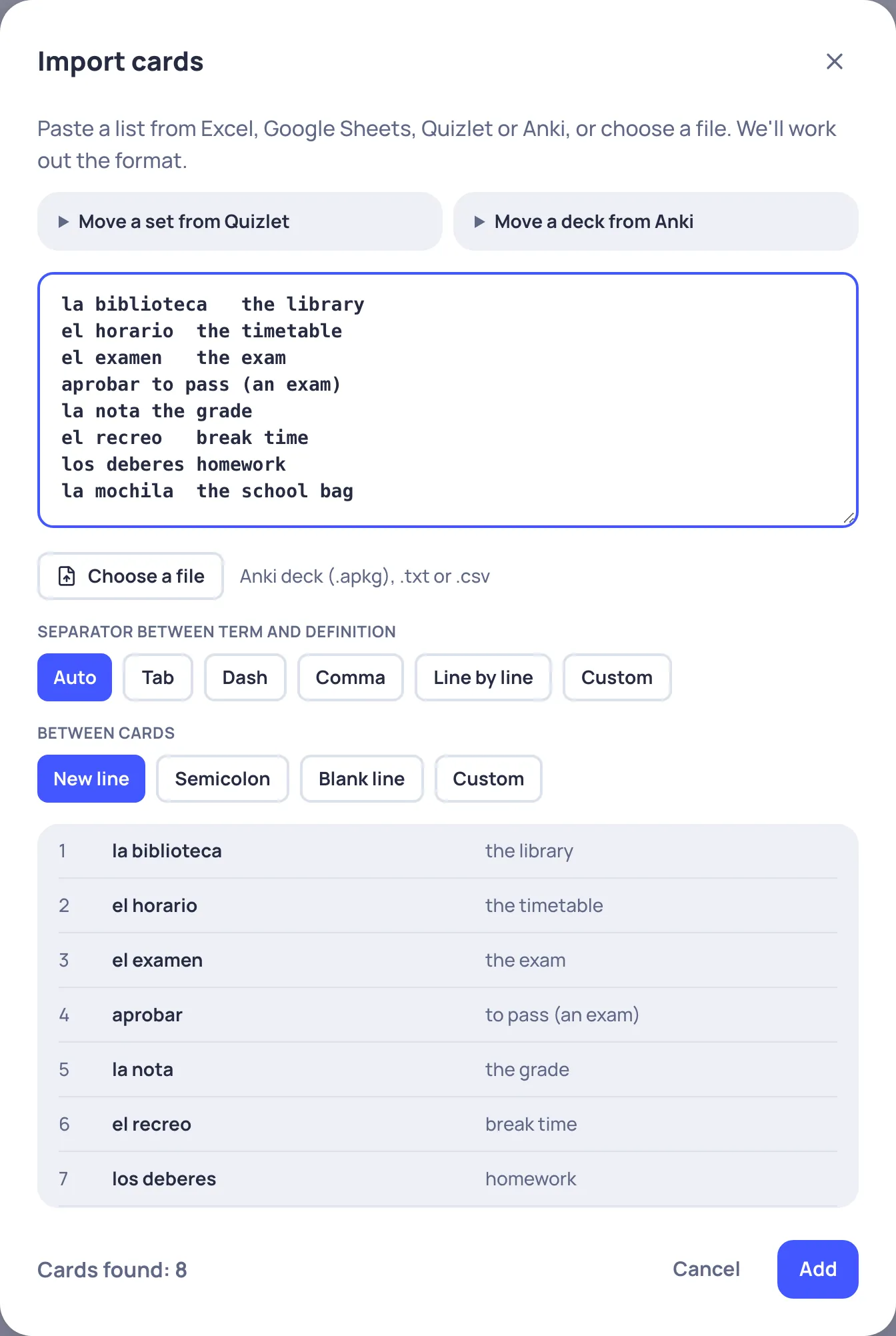
Text from Quizlet in the import window: Bebralka found the separators and shows the cards before adding them. Name the set and save
The cards are in the editor. Type a title and choose Save: the set is ready to study in any mode.
If something goes wrong
- You pasted a link, not text. Quizlet doesn't share sets by link; you need the text from Export → Copy text.
- Definitions have line breaks and the cards came out jumbled. In Quizlet's export, put a semicolon between rows, and in Bebralka's import choose Between cards: Semicolon.
- Some lines weren't recognised. The import lists them separately, so nothing gets lost silently. You can pick the separator yourself: Tab, Dash, Comma, Line by line or Custom.
- Cards over the limit. A term can be up to 1000 characters and a definition up to 2000. Longer cards are highlighted and need shortening before you save.
What moves over
Terms and definitions, in full, up to 2000 cards per set. Images don't: Quizlet doesn't export them, and cards in Bebralka are text only. Stars and progress stay in Quizlet; in Bebralka you start fresh. Read-aloud is built in, using your browser's voices.
Anki decks (.apkg)
In Anki on a computer, choose File → Export and save the deck as .apkg, or download a shared deck from AnkiWeb. In Bebralka's import, click Choose a file and pick the deck: the deck is read right in your browser and isn't uploaded anywhere. A whole collection (.colpkg) works too. Images and sounds from Anki don't move over, only the text.
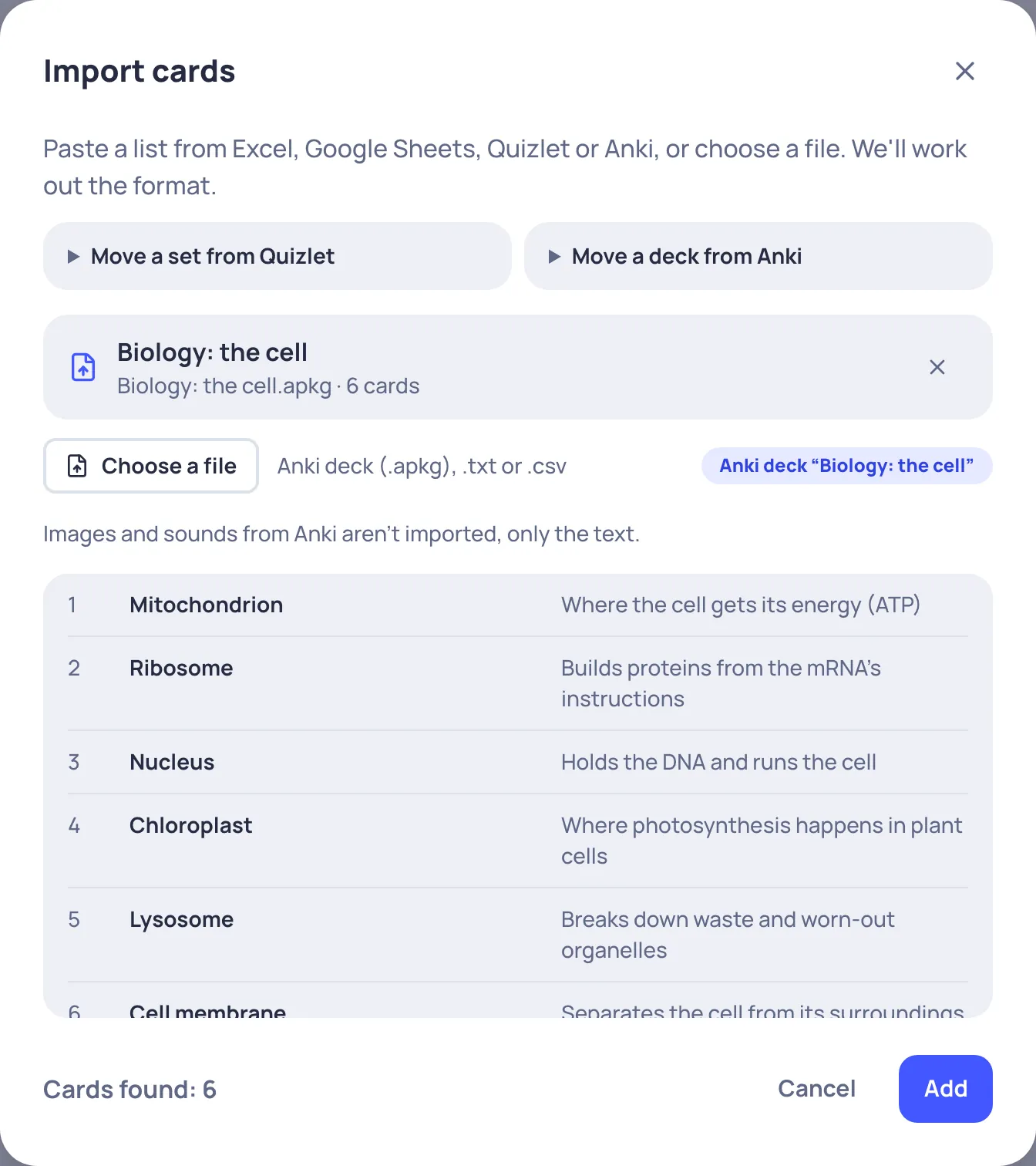
From Excel or Google Sheets it's simpler still: select two columns, copy and paste them into the import. A .csv or .txt file works through Choose a file as well.
And back again
Any set exports from Bebralka as an Anki deck, a CSV table or text that pastes into Quizlet's import. If you go back, your sets go with you. How Bebralka and Quizlet compare is in a table of its own.
Move your first set over: it takes a minute.